Lotus365 Login Issues: Troubleshooting & Solutions in 2025
Lotus365 login problems are frustrating. When you cannot access your account, you miss live matches, betting opportunities, and potential winnings. However, most issues have simple fixes you can apply immediately.
This guide covers every Lotus365 login issue beginners encounter. From forgotten passwords to locked accounts, we explain the exact cause and step-by-step solution for each problem. Whether you use web, mobile browser, or the app, you will find practical troubleshooting steps that work.
By following this guide, you will solve your Lotus365 login issues without contacting support. Most fixes take less than five minutes to complete.
Why Lotus365 Login Problems Happen
Understanding the root cause helps you fix the problem quickly. Lotus365 login issues usually stem from six primary reasons.
- Wrong username or password is the most common cause. Typos, caps lock errors, or outdated credentials block access.
- Account locked from failed attempts happens when you enter incorrect credentials multiple times. The system locks your account temporarily for security.
- OTP or verification code issues occur when you do not receive the one-time password for two-factor authentication.
- Browser or app cache problems cause loading errors, blank login forms, or stuck pages.
- Outdated app version prevents login on mobile. New versions fix bugs that older versions cannot handle.
- Internet connection problems create timeouts or connection errors during the login process.
- Regional or network restrictions may block access in some areas.
Identifying which category your issue falls into helps you apply the right solution immediately.

Fix 1: Verify Your Username and Password
This is the first troubleshooting step for any Lotus365 login problems. Most users solve their access issues at this point.
- Check your username carefully. Use the exact ID provided by your agent or during registration. Examples include
LOTUS2025,USER123, orAGENT456. Usernames are case-sensitive, so Lotus2025 differs from lotus2025. - Verify your password is typed correctly. Ensure no extra spaces are included before or after your password. Check that caps lock is off. A password like
Cricket@123is different fromcricket@123. - Common typos to avoid: Confusing the letter
Owith the number0. Mixingl(lowercase L) with1(the number one). Forgetting special characters like@,#, or$that are part of your password.
Pro tip: If you have your credentials written down, copy and paste them into the login form. This eliminates manual typing errors that block access.
If you enter the correct credentials and still cannot log in, proceed to the next fix.
Fix 2: Use the Forgot Password Option
When you forget your Lotus365 login password, the platform provides an official recovery option. This is the fastest way to regain access.
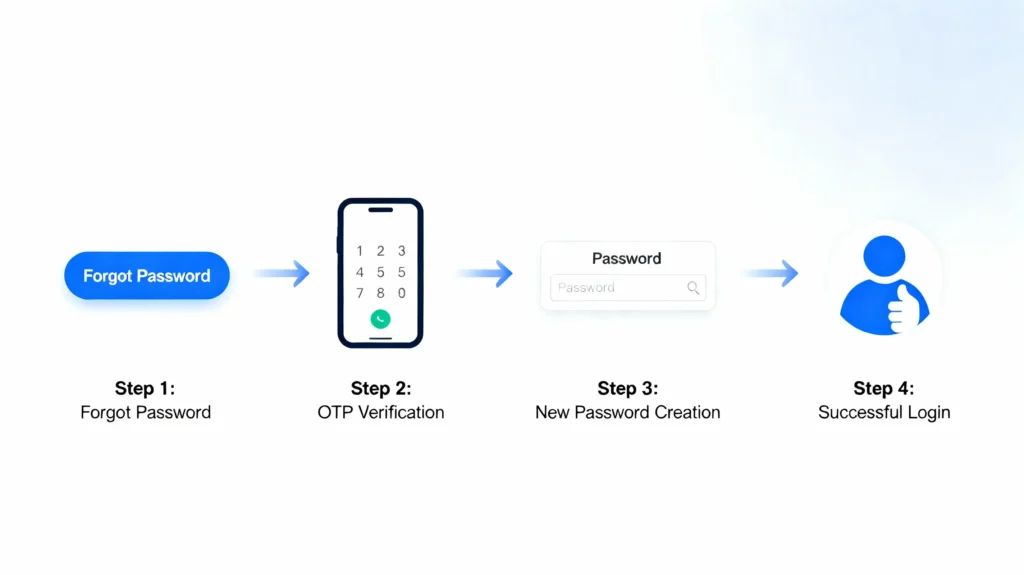
Step-by-step password reset process:
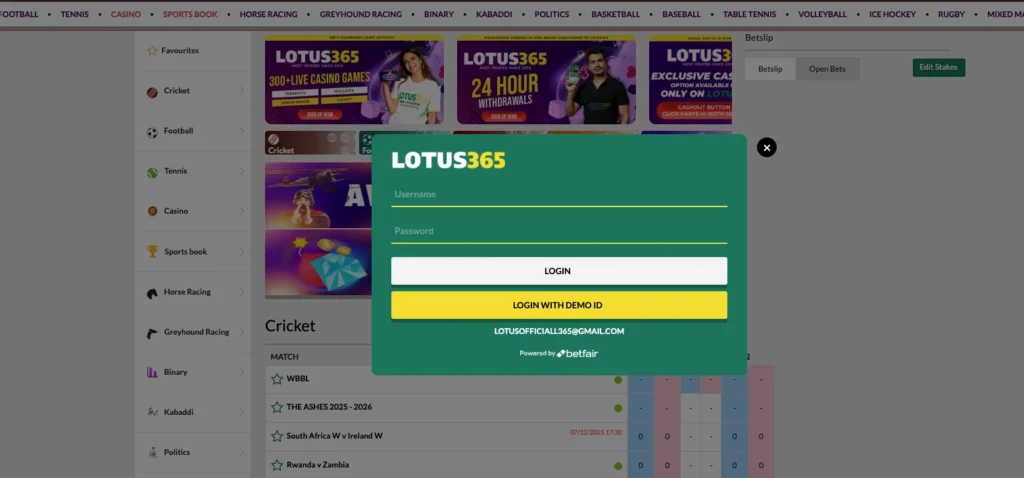
Step 1: Open the login page. Visit the official Lotus365 website or open the mobile app.
Step 2: Click Forgot Password. Below the login form, you will see a “Forgot Password” or “Reset Password” link. Click it.
Step 3: Enter your registered details. You will be asked for your mobile number or email address associated with your account. Enter the exact number or email used during registration.
Step 4: Receive and enter OTP. Lotus365 sends a one-time password (OTP) to your phone or email. Check your SMS or email inbox (including spam folders) for this code. Enter the OTP in the next field.
Step 5: Create a new password. Set a strong password with at least 8 characters. Include uppercase letters, lowercase letters, numbers, and special symbols like @ or #.
Step 6: Confirm and log in. After resetting, return to the login page and enter your new credentials.
Common issues during password reset:
OTP not received: Check your spam or junk folder. Verify your phone has active network coverage for SMS messages. Request a new OTP if the first one expires (usually after 5-10 minutes).
Incorrect registered details: If you enter a mobile number or email not linked to your account, the reset fails. Please confirm with your agent that you are using the correct contact information.
Expired reset link: Password reset codes expire quickly, usually within 15-30 minutes. Act immediately after receiving the OTP.
Fix 3: Unlock Your Locked Account
When you enter your password incorrectly multiple times, Lotus365 locks your account temporarily. This security feature prevents unauthorized access attempts.
Why accounts get locked: After 3-5 failed login attempts, the system automatically locks your account for one hour.
How to know if your account is locked: You receive a message stating “Account locked” or “Too many login attempts.” You cannot proceed even with correct credentials.
Immediate solution: Wait for the lockout period to expire, usually one hour. After this time, try logging in again with your correct credentials.
If you are still locked out:
Contact Lotus365 customer support through live chat or WhatsApp. Provide your username and registered mobile number. Support staff will verify your identity and unlock your account manually within minutes.
How to avoid future lockouts: Type your password carefully. Use copy-paste to avoid typos. If you are unsure about your password, use the Forgot Password option instead of guessing.
Fix 4: Resolve OTP or Verification Code Issues
Two-factor authentication adds security to your Lotus365 login, but OTP problems are common. Here are the most frequent issues and fixes.
Problem: OTP not arriving
Causes: Weak network signal, blocked SMS messages, incorrect phone number on file, or spam filters blocking the message.
Solutions: Verify your phone has strong 4G or WiFi connectivity. Check your spam folder for OTP emails. Confirm with your agent that your mobile number is correctly registered. Wait 2-3 minutes before requesting a new OTP, as messages sometimes arrive with delays.
Problem: OTP expired
Cause: OTP codes expire quickly, typically within 5-10 minutes.
Solution: Request a fresh OTP immediately if yours expires. Do not attempt to use an expired code.
Problem: Entering OTP incorrectly
Cause: Typos, misreading numbers, or copying incorrectly from your message.
Solution: Read the OTP slowly and carefully. Do not add spaces between digits. Copy the code directly from your SMS to the login field if possible.
Problem: Account not verified
Cause: Your phone number or email was never verified during registration.
Solution: Contact support to complete account verification. They will guide you through OTP-based verification manually.
Fix 5: Clear Browser Cache and Cookies
Browser cache and stored cookies sometimes cause Lotus365 login problems on desktop and mobile browsers.
Why cache causes issues: Outdated cached data conflicts with the current website, causing pages to not load properly or login forms to malfunction.
How to clear cache on Chrome (desktop and mobile):
Open Chrome and click the menu (three dots). Go to Settings > Privacy and Security > Clear Browsing Data. Select “All time” for the date range. Check boxes for “Cookies and other site data” and “Cached images and files”. Click Clear data.
Return to Lotus365 and try logging in again.
How to clear cache on Safari (desktop and mobile):
Open Safari and click Safari > Preferences (on Mac) or Settings (on iPhone). Go to Privacy and click Manage Website Data. Find Lotus365 and click Remove. Confirm and exit.
How to clear cache on Firefox:
Open Firefox and press Ctrl+Shift+Delete (Windows) or Cmd+Shift+Delete (Mac). Select Cookies and Site Data and click Clear.
When to use this fix: Your login page looks broken, buttons do not respond, or you see old account information on screen.
Fix 6: Update Your Browser or App
Outdated browsers and apps frequently cause Lotus365 login problems because they lack security features and bug fixes.
Why updates matter: New browser and app versions fix security vulnerabilities, compatibility issues, and bugs that prevent login.
Update your desktop browser:
- Chrome: Click the menu (three dots) > Settings > About Chrome. Chrome automatically checks for updates. Restart your browser to apply the update.
- Firefox: Click the menu (three lines) > Help > About Firefox. Firefox automatically downloads updates. Restart to apply.
- Safari: On Mac, go to Apple menu > System Preferences > Software Update. Update macOS to get the latest Safari version.
- Edge: Click the menu (three dots) > Help and feedback > About Microsoft Edge. The browser checks for updates automatically.
Update the Lotus365 app (Android):
Open Google Play Store. Search for Lotus365. If an update is available, click Update. Wait for the download and installation to complete. Restart your phone and open the app.
Update the Lotus365 app (iOS):
Open the Apple App Store. Go to the Updates tab. Find Lotus365 and tap Update. Enter your Apple ID password if prompted. Wait for installation and restart the app.
Pro tip: Enable automatic updates on your phone so apps update without manual intervention.
Fix 7: Check Your Internet Connection
A weak or unstable internet connection frequently causes Lotus365 login problems.
Signs of connection problems: Login form times out without loading. Error messages appear saying “Connection Failed” or “Cannot reach server”. The page loads very slowly.
How to test your connection:
Open another website like Google or YouTube. If it loads quickly, your connection is fine. If the login process is slow, the issue is likely with your internet connection.
Quick fixes for connection issues:
- Restart your router: Unplug your WiFi router for 10 seconds. Plug it back in and wait 30 seconds for it to restart. Try logging in again.
- Switch networks: If using WiFi, try switching to mobile data (4G/5G). If using mobile data, try WiFi instead. This helps identify where the problem is.
- Move closer to the router: WiFi strength decreases with distance. Move closer if you are far from the router.
- Disable VPN: Some VPN services block access to gaming sites. Disable your VPN temporarily and try logging in.
- Check your plan: Ensure your mobile data or broadband plan is active and you have not exceeded your monthly limit.
After fixing your connection, retry your Lotus365 login.

Fix 8: Disable VPN or Proxy Services
Some regions restrict access to gaming sites, and many users rely on VPNs to bypass these restrictions. However, VPNs sometimes interfere with Lotus365 login.
Why VPNs cause problems: Gaming sites detect VPN usage and block access. VPN servers may be too slow or unstable for secure login processes.
How to disable VPN:
On Windows: Go to Settings > Network & Internet > VPN. Find your VPN service and click Disconnect.
On Mac: Click the VPN icon in the menu bar and select Disconnect.
On Android: Go to Settings > Network > VPN. Find your VPN and toggle it off.
On iOS: Go to Settings > General > VPN & Device Management. Find your VPN and toggle it off.
After disabling VPN: Try logging into Lotus365. If login works without VPN, you know the VPN was causing the issue.
Alternative solution: Try a different VPN provider with better gaming site compatibility, or contact Lotus365 support for regional alternative access methods.
Fix 9: Resolve App-Specific Login Issues
The Lotus365 app sometimes has unique problems that do not occur on the web browser.
Problem: App crashes during login
Solution: Uninstall the app completely. Go to your app store and download the latest version fresh. This removes corrupted files that caused the crash.
Problem: App loads very slowly or freezes
Solution: The app cache has become too large. Go to Settings > Apps > Lotus365 > Storage > Clear Cache. Do not clear data, as this removes your login credentials. Try logging in again.
Problem: Login button does not respond
Solution: Force close the app. On Android, go to Settings > Apps > Lotus365 and tap Force Stop. On iOS, swipe up from the home screen and close the app. Reopen and try logging in.
Problem: Old account information shows after login
Solution: Clear the app cache as described above. Or log out completely and log in again. If the issue persists, reinstall the app fresh.
Fix 10: Contact Lotus365 Support
If none of the fixes above work, your issue requires manual assistance from support staff.
When to contact support: Your account remains locked after one hour. You cannot receive OTP despite correct phone number. You receive unusual error messages not covered here. You suspect unauthorized account access.
How to contact Lotus365 support:
- Live Chat: Visit the official Lotus365 website and click the live chat icon (usually bottom-right corner). A support agent responds within minutes.
- WhatsApp: Save the Lotus365 support number and send a message describing your issue. Include your username and registered mobile number for verification.
- Email: Send a detailed message to the official support email address. Include screenshots of error messages and your username.
- Support phone line: Call the official Lotus365 customer service number in your region.
- What information to provide: Your registered username, mobile number or email, description of the problem, what fixes you have already tried, and any error messages you received.
- Expected response time: Live chat usually responds within 5-15 minutes. WhatsApp support responds within 1-2 hours. Email support responds within 24 hours.
Common Lotus365 Login Problems and Quick Fixes Summary
| Problem | Cause | Quick Fix |
|---|---|---|
| Wrong username/password error | Typos, caps lock on, outdated credentials | Double-check credentials, use copy-paste, verify with agent |
| Account locked | Too many failed login attempts | Wait 1 hour or contact support |
| OTP not received | Weak network, incorrect phone number, spam filter | Check spam folder, request new OTP, verify phone number |
| OTP expired | OTP code validity period passed | Request new OTP immediately |
| Page does not load | Browser cache, slow connection, outdated browser | Clear cache, restart router, update browser |
| App crashes | Corrupted app files | Uninstall and reinstall app |
| App freezes | App cache too large | Clear app cache via Settings |
| Connection timeout | Weak internet connection | Switch networks, disable VPN, move closer to router |
| Account suspended | Multiple violations or security concerns | Contact support for manual verification |
| Cannot access from certain device | Device compatibility issue, browser incompatibility | Update browser, try different device, update app |
Prevention Tips to Avoid Future Lotus365 Login Issues
Strong habits prevent most Lotus365 login problems before they happen.
Store your credentials securely: Write your username and password in a secure location that only you can access. Use a password manager like 1Password or LastPass to store login details safely.
Create a strong password: Use a mix of uppercase, lowercase, numbers, and special characters. Avoid simple passwords like 123456 or birthdate combinations. Make your password unique and different from other online accounts.
Update your software regularly: Keep your browser, app, and operating system updated. Enable automatic updates to ensure you always have the latest security patches.
Use stable internet: Log in from a stable WiFi or broadband connection. Avoid logging in over extremely slow or unreliable networks.
Log out properly: Always click the Logout button after finishing your session. Do not just close the browser.
Avoid fake sites: Bookmark the official Lotus365 URL. Always use links provided by your agent. Never click links from unsolicited emails or messages.
Enable two-factor authentication: If Lotus365 offers 2FA, turn it on in your account settings. This adds extra security even if someone learns your password.
Frequently Asked Questions About Lotus365 Login Issues
How long does an account stay locked?
Most Lotus365 accounts lock for one hour after multiple failed login attempts. You can then try again or contact support to unlock immediately.
Can I reset my password on the mobile app?
Yes. Click “Forgot Password” on the app login screen. The process is identical to resetting on the website.
What if I forgot both my username and password?
Is the password reset link secure?
Yes. Lotus365 uses encrypted connections. Ensure you receive the reset link through official channels only. Never trust password reset links from emails or links you did not request.
Is Lotus365 login secure?
Yes. Lotus365 uses SSL encryption, OTP verification, and two-factor authentication to protect your account.
Summary
Lotus365 login problems rarely require support intervention. Most issues—forgotten passwords, locked accounts, OTP errors, and technical glitches—have quick fixes you can apply yourself.
The most common solution is verifying your credentials and using the Forgot Password option if needed. Browser cache clearing and internet connection checks solve most technical problems. Updated software prevents compatibility issues on mobile devices.
By following the troubleshooting steps in this guide, you will restore access within minutes. Implement prevention tips like strong passwords and secure credential storage to avoid future issues.
If problems persist after trying all fixes, contact Lotus365 support with your username and registered contact details. Support staff will investigate and resolve your issue manually.
Link to Lotus365 Login Guide 2025: Easy Step-by-Step Access for Beginners – This beginner’s guide complements the troubleshooting content by explaining basic login steps.
Link to Lotus365 Sign Up Process: Step-by-Step Guide for Beginners – Guide new users through account creation before they encounter login issues.
Link to Lotus365 Bonus Offers Explained: Get Maximum Rewards! – Once users successfully log in, direct them to bonus information.